Mobile Device Hardware: Monitor, Diagnose, Replace
Laptops pack a whole Personal Computer (PC) into an inch of aluminum. Here's what wears out, what you can actually replace, and how to open one without making the problem worse.
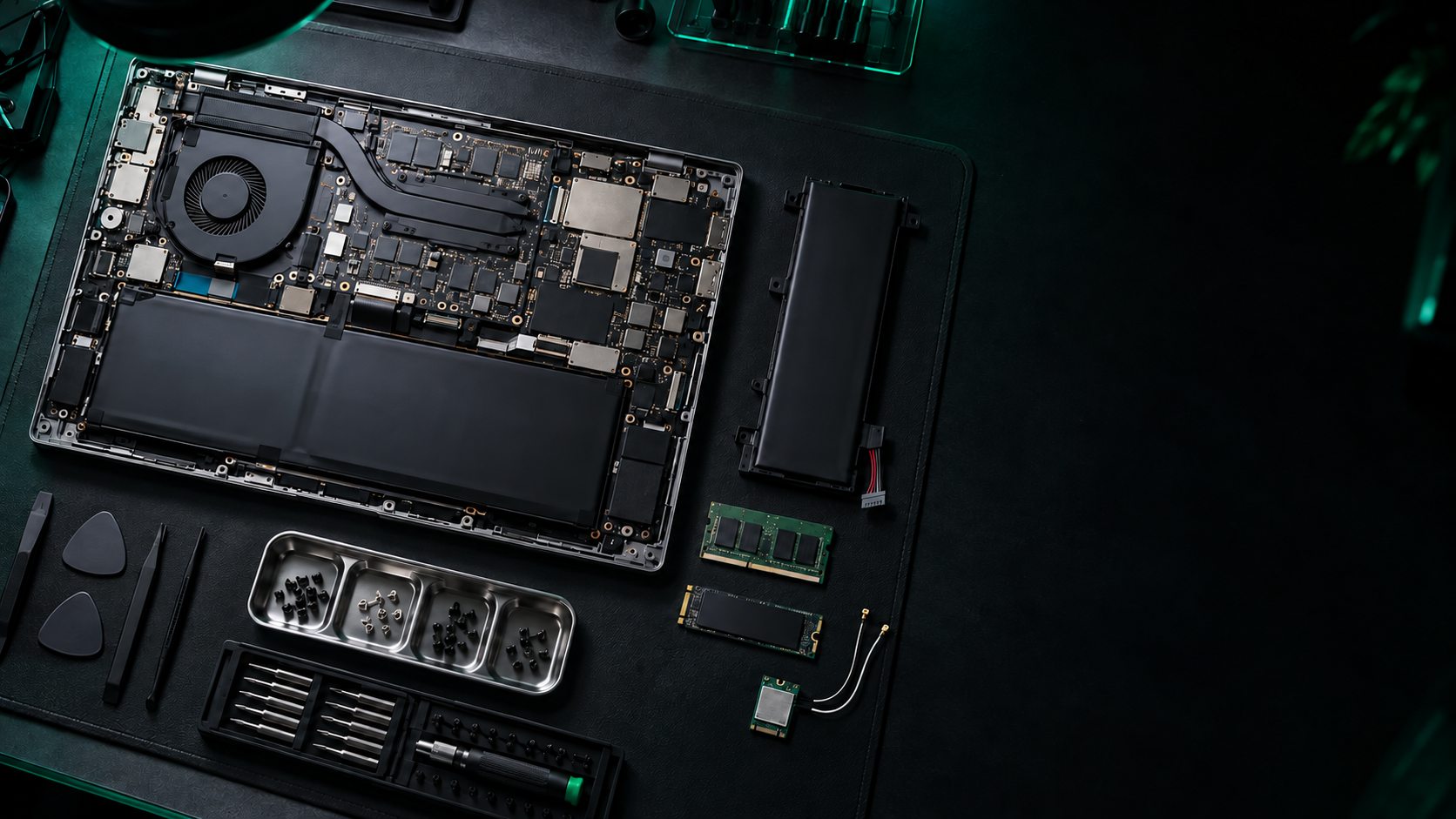
Week 1, day 1. Welcome to Core 1 Mondays. We start where most new techs start: someone's laptop is acting up, and it's on your bench.
Objective 1.1 says "Given a scenario, monitor mobile device hardware and use appropriate replacement techniques." Two skills are hiding in that sentence. First, read the symptom and figure out which component is failing. Second, know whether that part can be replaced in the field and how to do it without breaking three other things on the way in. The exam tests both with short scenarios, so that's how this post is built.
Formal objective 1.1. Match a symptom to the part, know which parts are replaceable, and follow safe replacement steps. Mobile troubleshooting continues in 1201 5.4.
You configure what this post installs: biometric sign-in, screen locks, and remote wipe (1202 2.8), and you securely dispose of the drives you pull (2.9).
Why antennas live in the display lid: placement and antenna types affect coverage (N10-009 2.3).
Fingerprint and face readers are the "something you are" Multifactor Authentication (MFA) factor (SY0-701 4.6), and removed drives fall under asset disposal (4.2).
Prefer video first? Jump to the free walkthrough ↓
What's actually replaceable?
Desktops are built from standard parts. Laptops and tablets are built to be thin, so manufacturers solder, glue, and custom-fit whatever they can. Before you order anything, check two things in the manufacturer's service manual: is the part a field-replaceable unit (FRU), and is it the exact model this machine supports?
Take one apart
The parts, one by one
Battery
Laptop and phone batteries are lithium-ion or lithium-polymer, and they wear out by design. Every charge cycle slightly reduces capacity, so a two-year-old battery that "only lasts an hour" is usually just old. Most operating systems will report battery health (Windows can generate a battery report with powercfg /batteryreport), which lets you compare the original design capacity with what the battery can hold now.
Replacement batteries must match the original's voltage and connector exactly. Capacity is listed in watt-hours (Wh) or milliamp-hours (mAh). Some batteries are external and slide out; most modern ones are internal and screwed or glued in place.
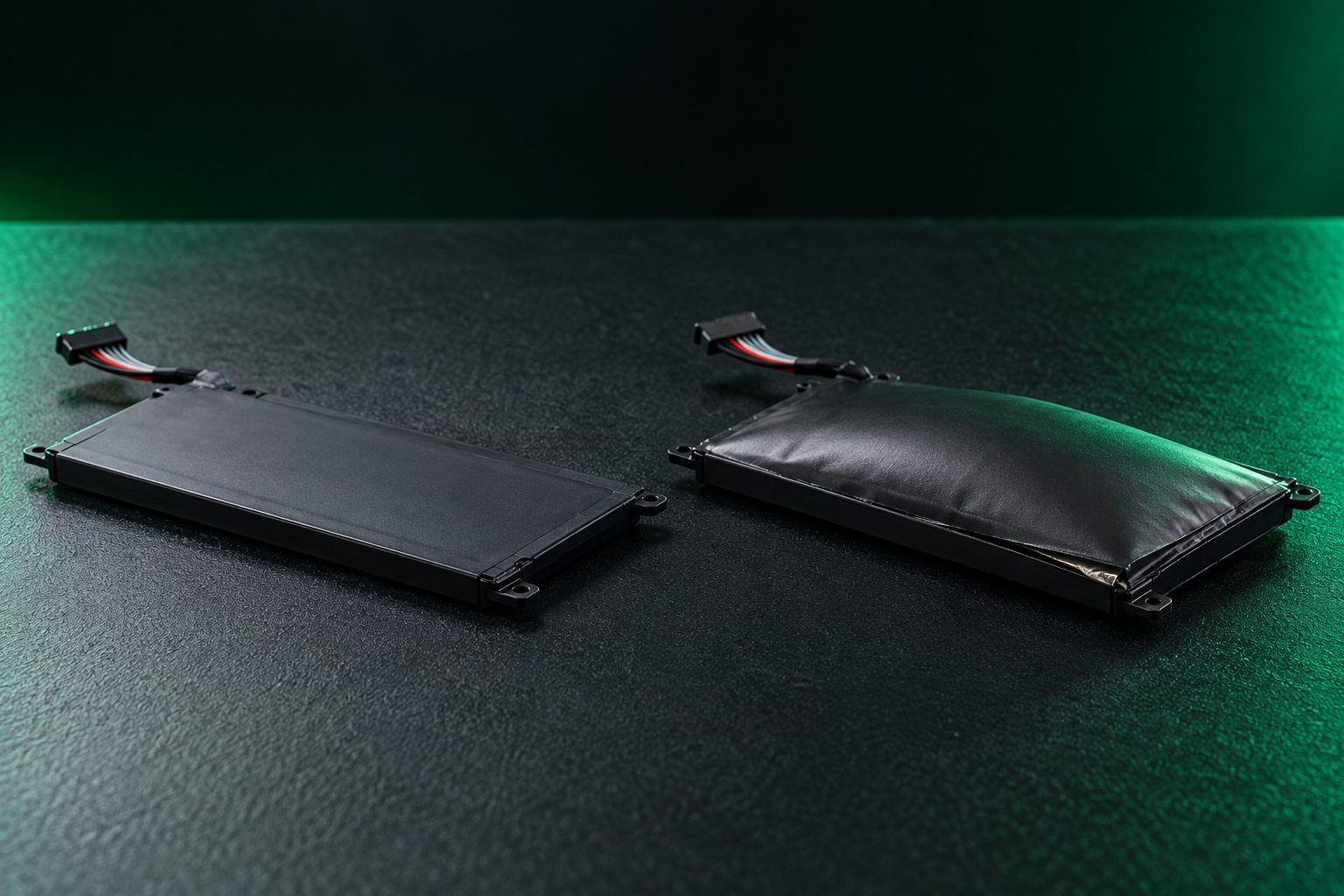
A trackpad pushing up, a case that won't close, or a screen lifting off a phone are signs of a swollen battery. Power the device down, unplug it, don't charge it, and never puncture or bend the battery. Replace it and dispose of it through a battery recycler (proper battery disposal is A+ Core 2 4.5).
RAM, HDD, and SSD
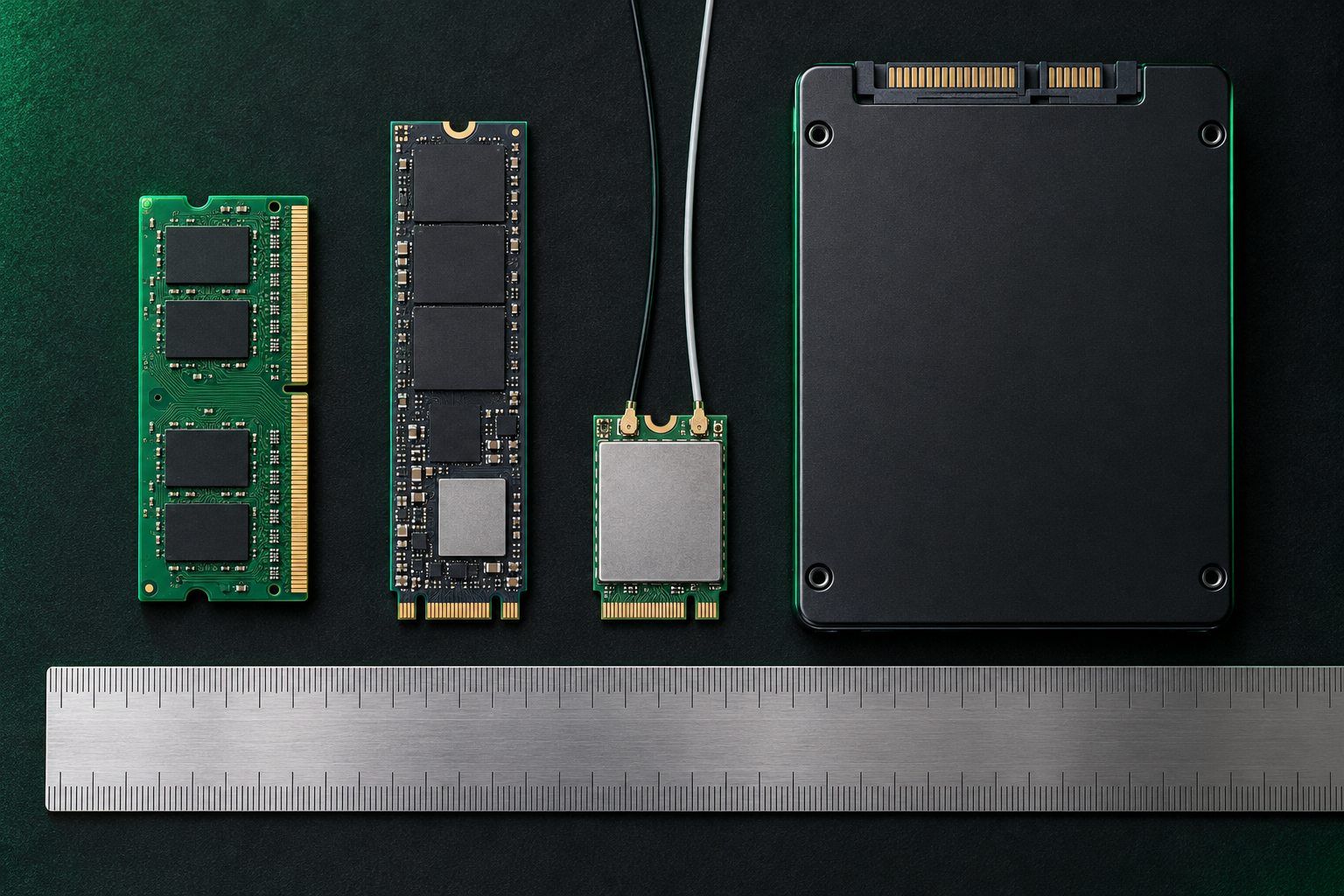
Laptop memory uses the smaller SODIMM form factor. Modules seat at an angle, about 30 degrees, then press flat until the side clips snap in. Many thin laptops use soldered memory instead, which means there's nothing to upgrade. Check the spec sheet before promising anyone more RAM.
Storage is either a 2.5-inch drive (SATA HDD or SSD) in a bay or caddy, or an M.2 card. M.2 is a shape, not a speed: an M.2 card can be SATA or NVMe, and the slot has to support it. The common laptop size is 2280, meaning 0.87 inches (22 mm) wide and 3.15 inches (80 mm) long. Swapping a failing hard drive for an SSD is one of the best upgrades you can make, but it starts with backing up or cloning the data first.
Wireless cards and antennas
Wi-Fi and Bluetooth usually share one small card, typically an M.2 2230 module, screwed down next to the SSD. Two thin cables snap onto it: the main and auxiliary antenna leads, often marked 1 and 2 or black and gray. Those tiny push-on connectors (such as U.FL or MHF4; check the exact connector family in the service manual) pop off with a gentle straight lift and go back on with a firm press.
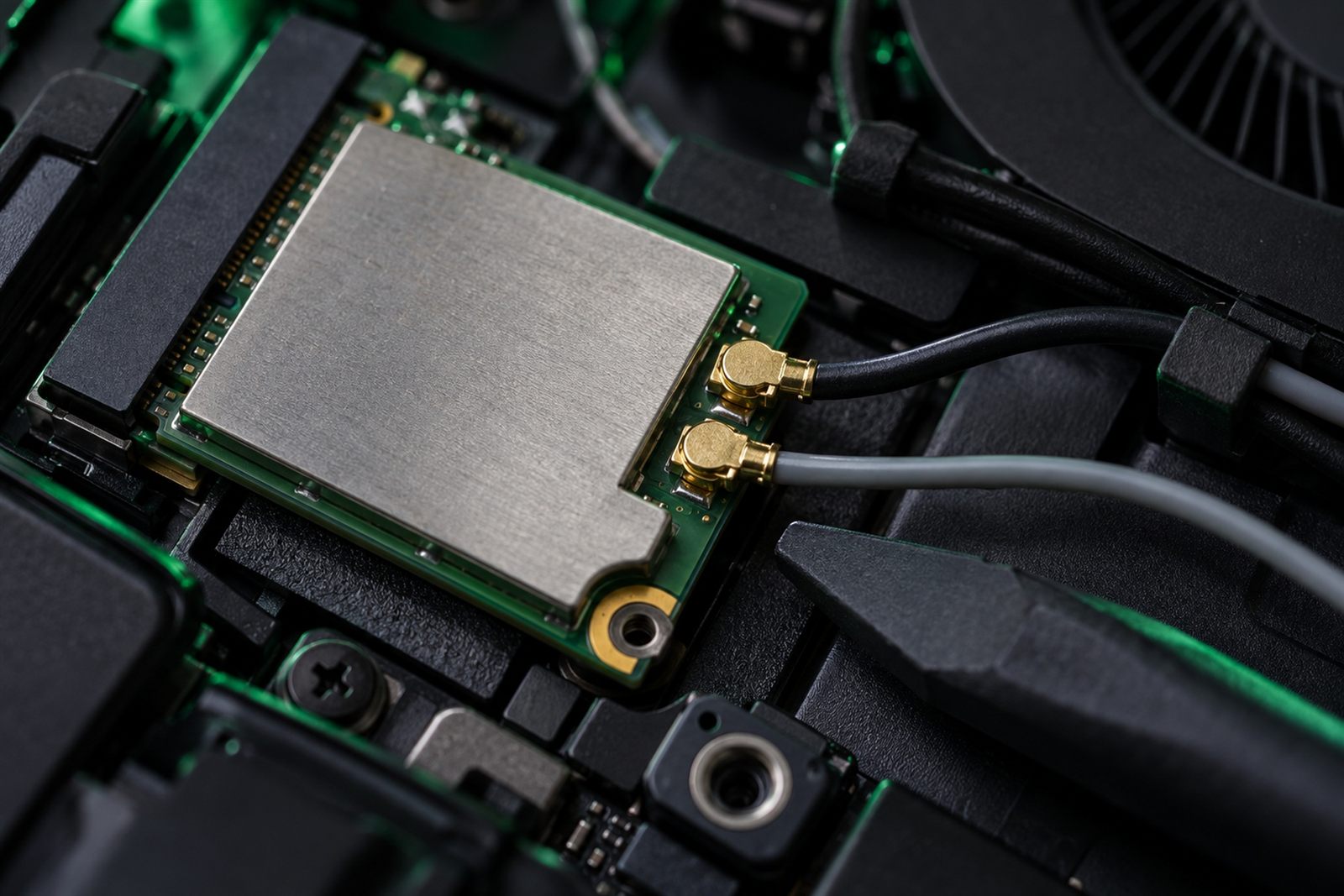
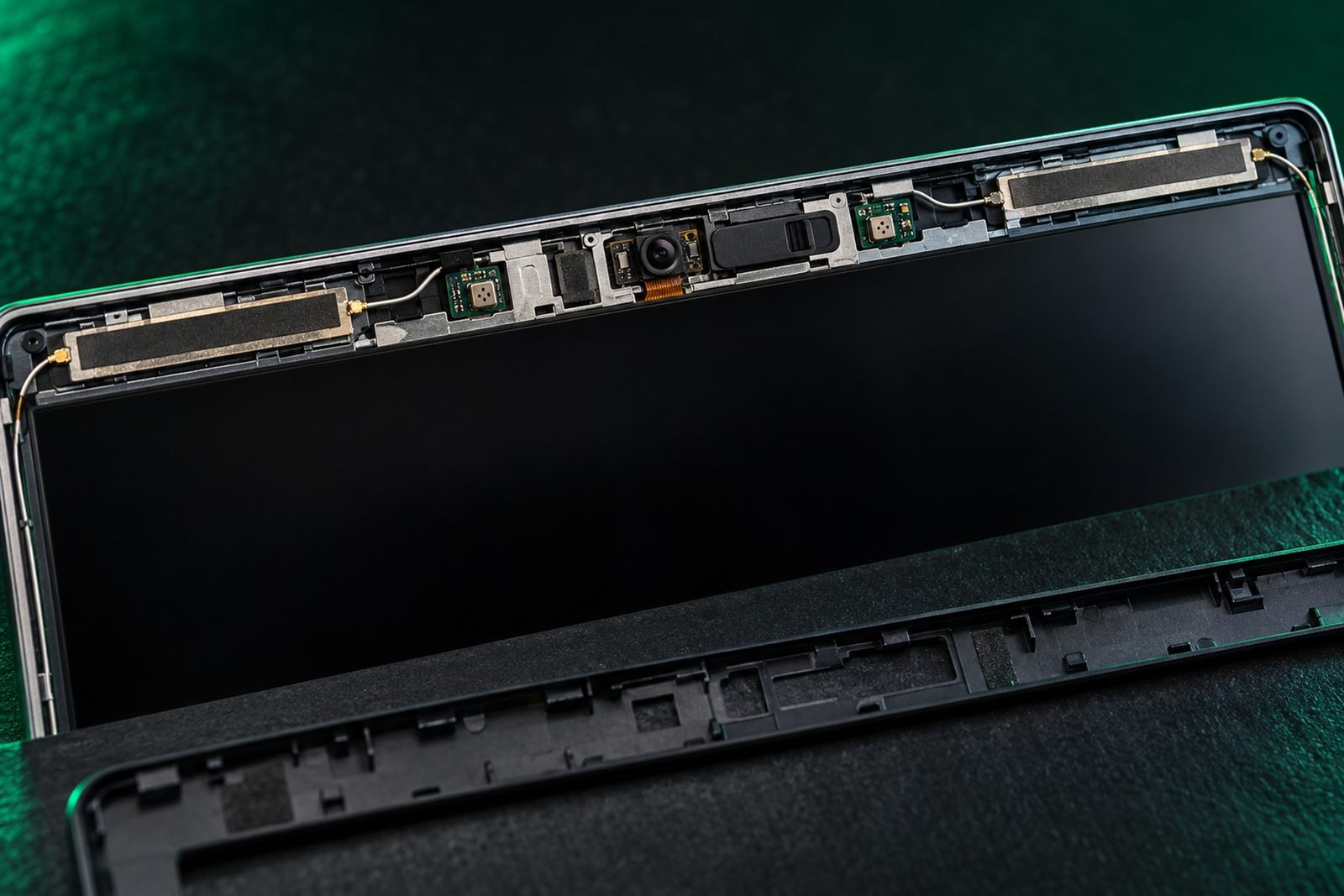
The antennas themselves aren't on the card. They run up through the hinge into the display lid, usually along the top edge of the screen, because higher placement with fewer obstacles gives better signal. That routing matters: any repair that removes the display or the hinges can pinch or disconnect the antenna leads.
"Wi-Fi got weak right after a screen replacement" is the classic 1.1 scenario. The answer is almost always the antenna connections or their routing, not the router and not the driver.
Keyboard, camera, and microphone
A single dead key can often be fixed by replacing the keycap and its small scissor clip. A spill or several dead keys usually means replacing the whole keyboard. On some laptops it lifts out after a few screws and a ribbon cable. On many thin models the keyboard is riveted to the palm rest, so you replace the entire top case. Ribbon cables connect through ZIF connectors: flip up the small latch, slide the cable out, never pull against a closed latch.
The webcam and microphones live in the display bezel. Before you order a camera, rule out the free fixes: a closed privacy shutter, a hardware kill switch or function key, the OS privacy settings blocking camera access, or a disabled device in Device Manager. Hardware replacement is the last step, not the first.
Biometrics, NFC, and privacy parts
Biometric hardware includes fingerprint readers (often built into the power button) and infrared cameras for face sign-in, like Windows Hello. These are frequently paired to the motherboard or the TPM, so after replacing either one, plan on the user re-enrolling their fingerprint or face.

Near-field communication (NFC) works at a range of an inch or two (a few centimeters). On a laptop, an NFC area in the palm rest can read badges and smart cards, pair devices with a tap, or support contactless sign-in. Physical privacy parts round out the list: webcam shutters and privacy screen filters that make the display unreadable from the side.
Replacement technique that won't bite you
CompTIA cares about how you replace a part as much as which part. The safe sequence:
- Check warranty and the service manual first. Opening a device under warranty can void it, and the manual tells you the exact disassembly order and part numbers.
- Back up the data before touching anything near storage.
- Power off, unplug, and disconnect the internal battery before working on the board.
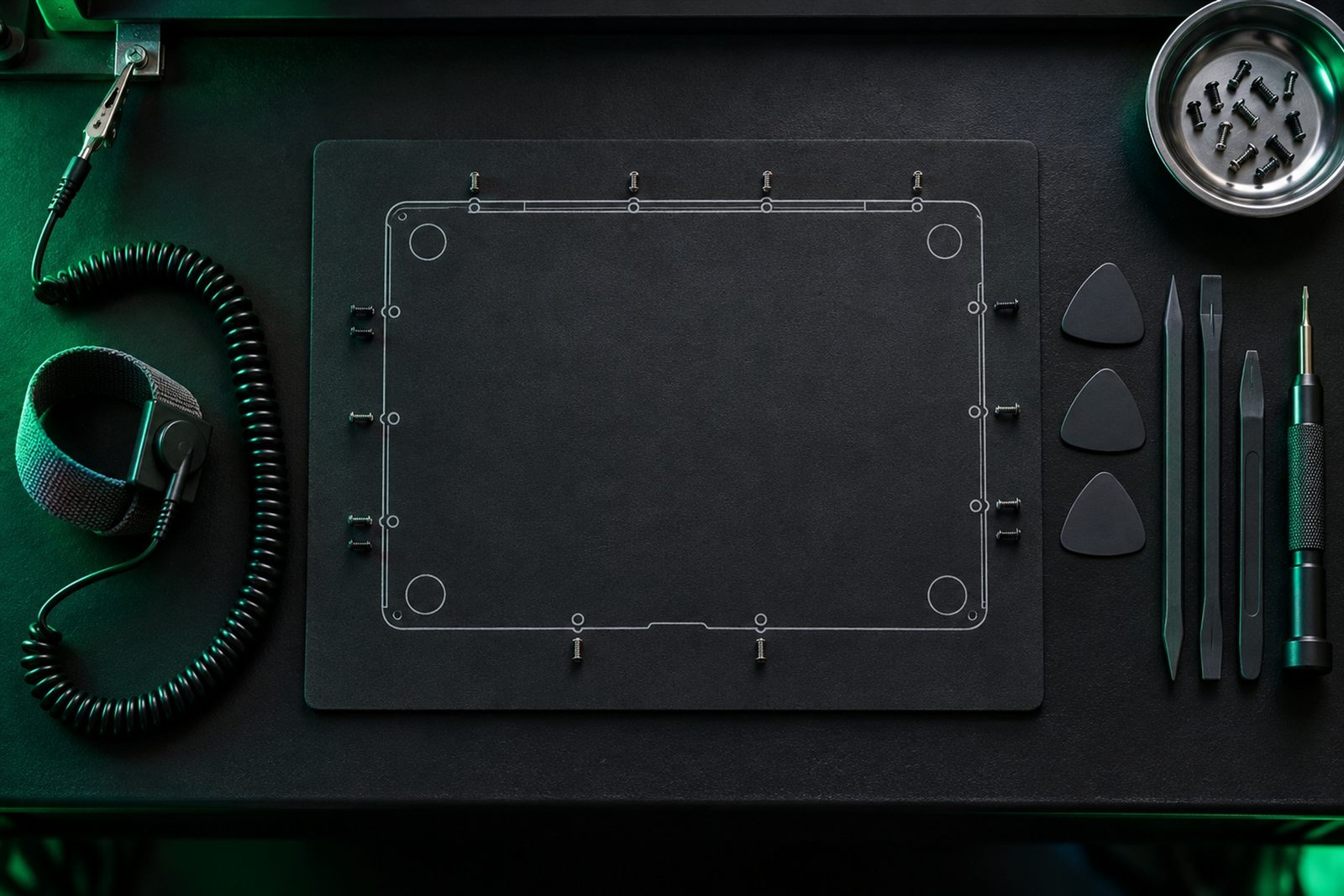
- Use ESD protection: a wrist strap and mat.
- Track every screw. Laptop screws come in different lengths, and a long screw in the wrong hole can punch through the board. Use a magnetic mat or a screw map, and take photos as you go.
- Use the right tools: plastic spudgers and pry tools, not screwdrivers, for clips and cables.
- Test before you close it all up, then dispose of old parts properly.
Triage like the exam
Exam traps
- SODIMM, not DIMM. DIMMs are full-size desktop memory. Laptops use SODIMMs.
- M.2 doesn't mean NVMe. M.2 is the shape. The drive inside can be SATA or NVMe, and the slot must support it.
- Soldered means no upgrade. If the RAM or storage is soldered, the honest answer is a different system, not a "compatible module."
- Swollen battery isn't a "wait for the part" problem. Stop using and charging it now.
- Weak Wi-Fi after a display repair points to antenna leads, not drivers or the router.
- Check software before hardware for cameras and mics: shutters, kill switches, privacy settings, and Device Manager come first.
Field ticket: work it like a PBQ
Hands-on time. Read the ticket and the evidence, then work it step by step.
Heads up: on the real CompTIA exam, PBQs give no right-or-wrong feedback while you work. This practice version does, so you can learn from each step.
"I got my laptop back from the screen repair Friday. Now Wi-Fi keeps dropping at my desk and video calls freeze. My coworker sitting right next to me is fine." — R. Okafor
    Name                   : Wi-Fi
    State                  : connected
    SSID                   : CORP-WIFI
    Radio type             : 802.11ax
    Receive rate (Mbps)    : 26
    Transmit rate (Mbps)   : 18
Signal : 31% Radio type : 802.11ax
Receive rate (Mbps) : 1201
Transmit rate (Mbps) : 960
Signal : 94%Oct 30 Display assembly replaced (cracked panel)
Bezel, hinges, and display cable reseated
Device Manager: Wi-Fi adapter OK, driver currentWhat's the most likely cause?
What do you do?
What proves it's fixed?
Ticket resolved. Document it: "Aux antenna lead was off the Wi-Fi card and main lead was pinched at the left hinge after the display replacement. Rerouted and reseated both. Signal now 92%, receive rate 1100+ Mbps at user's desk, video call tested with user."
Want more bench practice? Try the PC Building and System Configuration lab (Pro).
Quick check
Key terms
- FRU
- Field-replaceable unit. A part designed to be swapped by a technician without replacing the whole device.
- SODIMM
- Small Outline DIMM. The compact memory module used in laptops and small form factor PCs.
- M.2
- A small card form factor for SSDs and wireless cards. Can carry SATA or NVMe storage. Named by size, like 2280 or 2230.
- Antenna leads
- The main and auxiliary cables from the Wi-Fi card up to antennas in the display lid. Small push-on U.FL/IPEX connectors.
- ZIF connector
- Zero insertion force. A ribbon-cable connector with a latch you open before removing the cable.
- Swollen battery
- A failing lithium-ion battery expanding from internal gas. A safety hazard: stop using and charging it.
- Biometrics
- Fingerprint readers and IR face cameras used for sign-in. Often paired to the motherboard or TPM.
- NFC
- Near-field communication. Very short-range wireless used for tap-to-pair, badges, and contactless payments.
Watch it
Prefer to see it on video? These free lessons cover the same objective. They open on YouTube in a new tab.
Practice it

Brett went from food service to IT in 2020 and earned his certifications from scratch. He builds BB Tech Tools to close a gap every IT learner hits: knowing the concepts but freezing on PBQs.