Mobile Accessories: The Plug Fits. Will It Work?
A user plugs a laptop into a new desk setup, and the plug fits fine, but that doesn't mean the connection will do the job. You'll compare cables, wireless links, docks and input devices, learn to pick the one that fits the user's work, and then sort out a desk setup ticket.
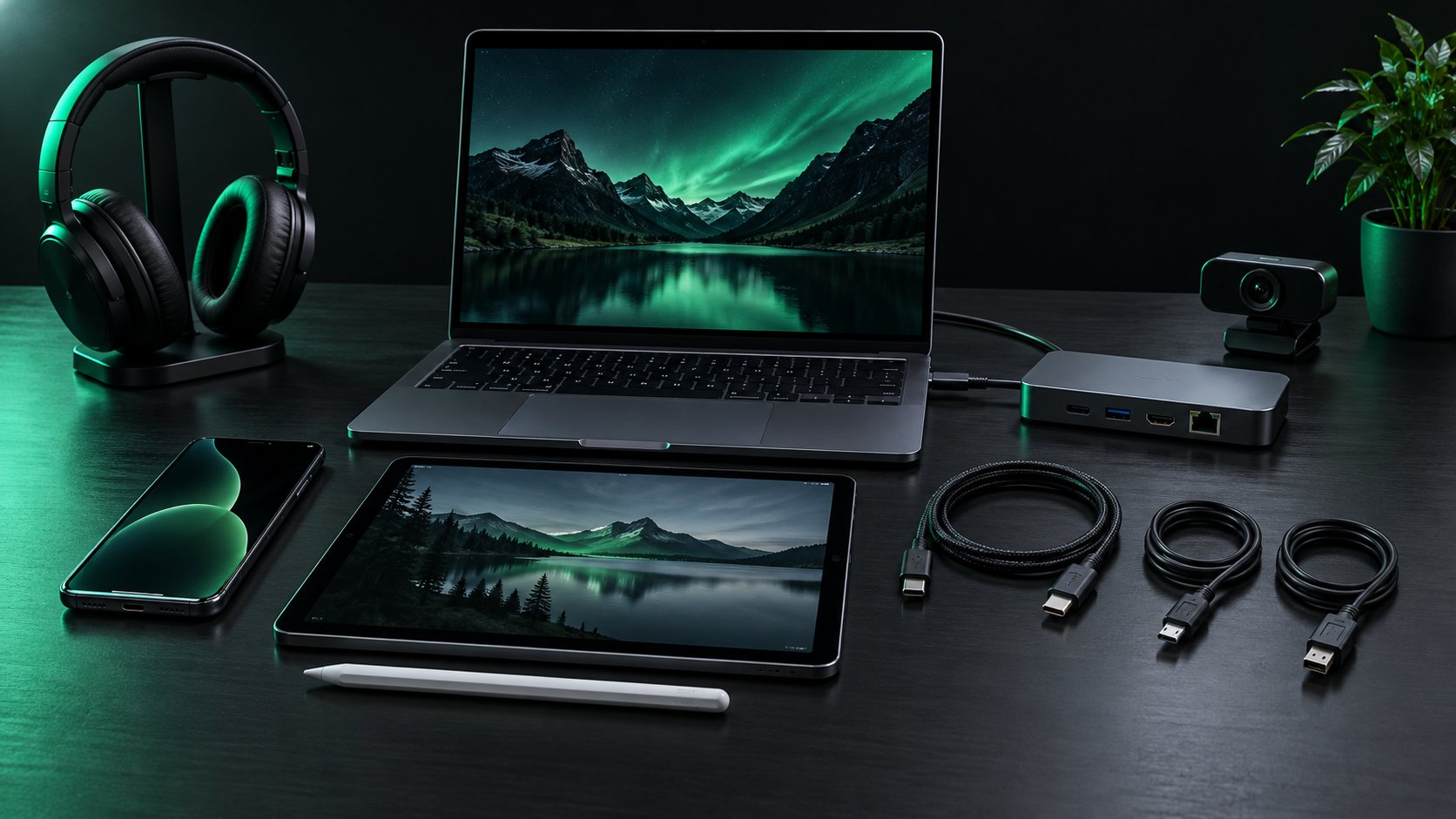
The phone charges, but the monitor stays black. The new stylus pairs, but it cannot draw. A connector that fits is a useful clue; it is not a compatibility test. Core 1 Monday is about separating the shape of the plug from the job you need it to do.
Compare every named connection and accessory, then explain why one suits the task. 220-1201 1.2
Distinguish a local peripheral link from an internet uplink. Supporting networking context, not a second objective claim.
Treat tethering and removable peripherals as policy decisions. Supporting security context only.
Prefer video first? Jump to the free video ↓
One connection, three separate questions
Before you buy a cable or dock, separate three questions: the connector, the capability, and the endpoints. Universal Serial Bus (USB)-C names a reversible connector, but it doesn't promise a particular data rate, display output, or charging power. Your cable, host port, and accessory all have to support the function you want; successful charging proves only that a power path exists.
Next, compare the device specifications and cable rating, because USB can carry power and data while some cables support charging with limited or absent data capability. That difference can stop a dock or file transfer from working. If you're supporting older peripherals, you may encounter microUSB or miniUSB: neither plug is reversible, their shapes differ, and you mustn't force one into the other.
Lightning is Apple's older proprietary mobile connector. You will still encounter it on existing devices and accessories. An adapter changes the physical connection only when it also supports the required signaling. A plug converter cannot manufacture a capability that the source device lacks.
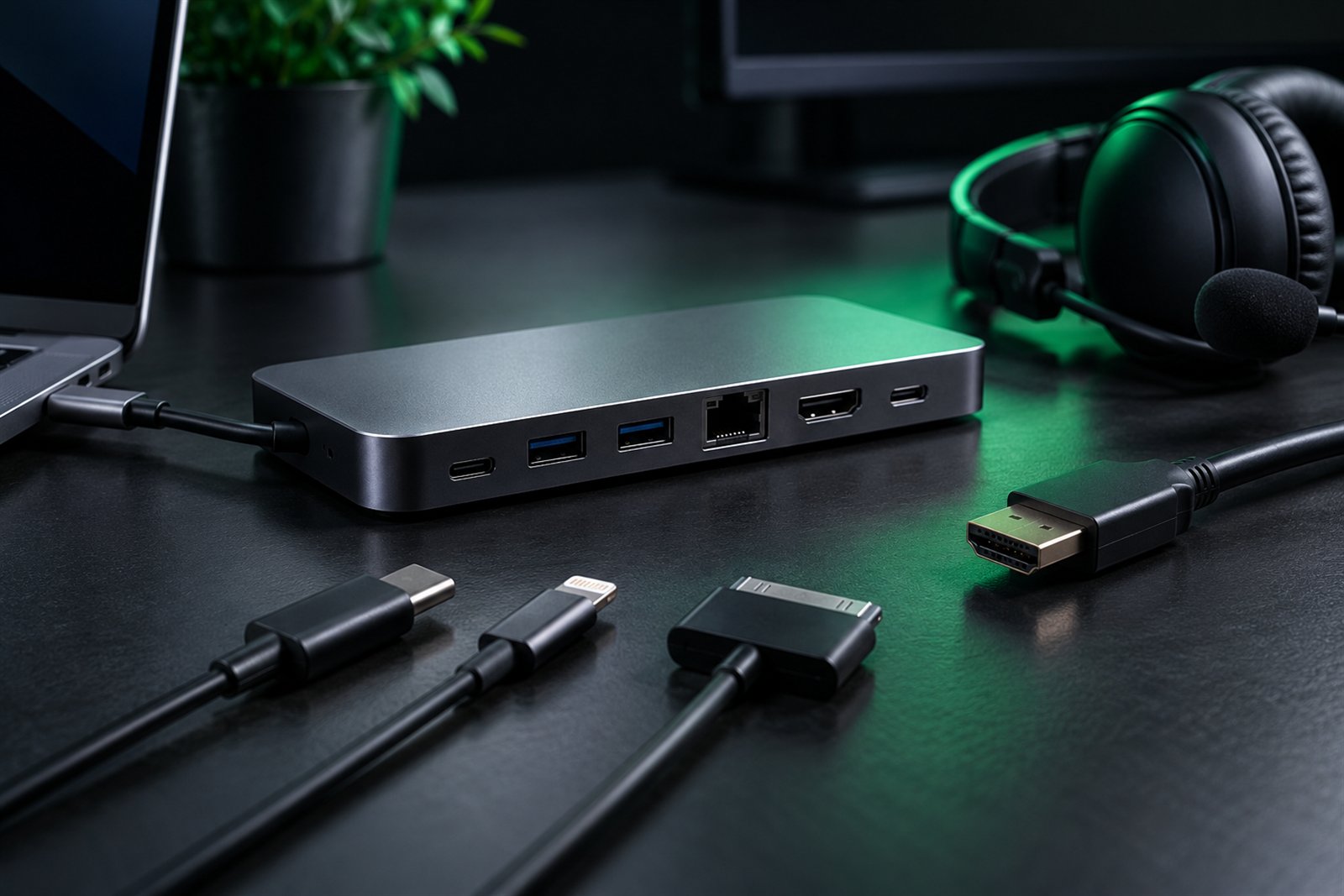
Then to now
Bluetooth is named after a 10th-century Viking king, and USB was plugging in printers years before the reversible USB-C plug showed up.
- 1996The USB 1.0 specification gave computers one common port for keyboards, mice, printers and more.
- 1999Bluetooth 1.0 arrived, named after Harald "Bluetooth" Gormsson, a Danish king who united rival tribes, just as the technology unites devices.
- 2012Apple introduced Lightning on the iPhone 5, replacing its 30-pin dock connector.
- 2014The USB Type-C specification introduced the reversible connector, separately from USB data speeds.
- TodayApple moved the iPhone 15 to USB-C in 2023, ahead of an EU rule requiring USB-C charging on new phones from December 2024. Same plug shape, but each device still decides which data, power and display features it supports.
That history helps you separate a connector's shape from the capabilities of the complete connection.
Tap, pair, or share the uplink
Near-Field Communication (NFC) suits a deliberate close-range tap, such as presenting a mobile credential or payment. Bluetooth suits a nearby accessory such as a headset, speaker, or supported input device. The small distances involved do not make either link automatically trustworthy; use the correct device and follow policy.
Tethering shares a phone's internet connection with another device. Depending on support, it can use USB, Bluetooth, or a Wi-Fi hotspot. A hotspot creates a local Wi-Fi network; the phone's cellular connection is commonly the upstream internet path. Joining that network does not turn the phone into a wired office connection.
Before you share the connection, check the data allowance, signal, battery use, and whether sharing is permitted. You can have good hotspot Wi-Fi signal and poor cellular reception at the same time because those are two different links. Detailed pairing and mobile-management setup belongs to next Monday's objective 1.3.
Choose the tool for the user's work
A stylus gives precise input, but active pen features depend on the digitizer and supported pen technology. A passive capacitive stylus generally imitates a finger; an active pen may add pressure, buttons, or palm rejection. Bluetooth pairing alone does not prove that the pen can write on that screen.
When you choose audio equipment, remember that a headset combines listening with a microphone, while speakers serve shared audio. Test both directions of a call and select the correct input and output device so you know the user can hear and be heard. An external webcam changes the video capture source, so confirm Operating System (OS) support, app selection, privacy permissions, and an upstream connection that carries data.
A trackpad handles pointer movement and gestures. A drawing pad maps pen input to a drawing workspace and may have no built-in display. A track point is the small pointing control within some laptop keyboards. They solve different input needs even though all can move a pointer.
A designer may need pressure-sensitive drawing input; a traveler may need a compact headset; a meeting room may need a webcam and speakers. Choose based on the task, then confirm compatibility.
A desk in one connection
A docking station brings several desktop connections together and may add charging, display, networking, or expansion. A port replicator makes ports easier to reach or increases their number. Modern product names overlap, so judge the actual specification rather than treating dock as a guarantee.
Before you promise a one-cable desk, check host display support, monitor resolution and count, upstream bandwidth, the dock power supply, charging delivery, and drivers. A USB-C dock may handle the keyboard and mouse perfectly while its display output is unsupported by the laptop port.
Start your test with a known-compatible cable and one display, then add peripherals one at a time so you can see which addition changes the result. Record the compatible combination so the next technician can reproduce it. If the host lacks native display output, choose a documented alternative that the organization supports.
Connection field guide
Match each mobile connection to the job, then check the capabilities and limits that the connector or wireless label cannot tell you.
◇ USB-COne shape, several capability checks
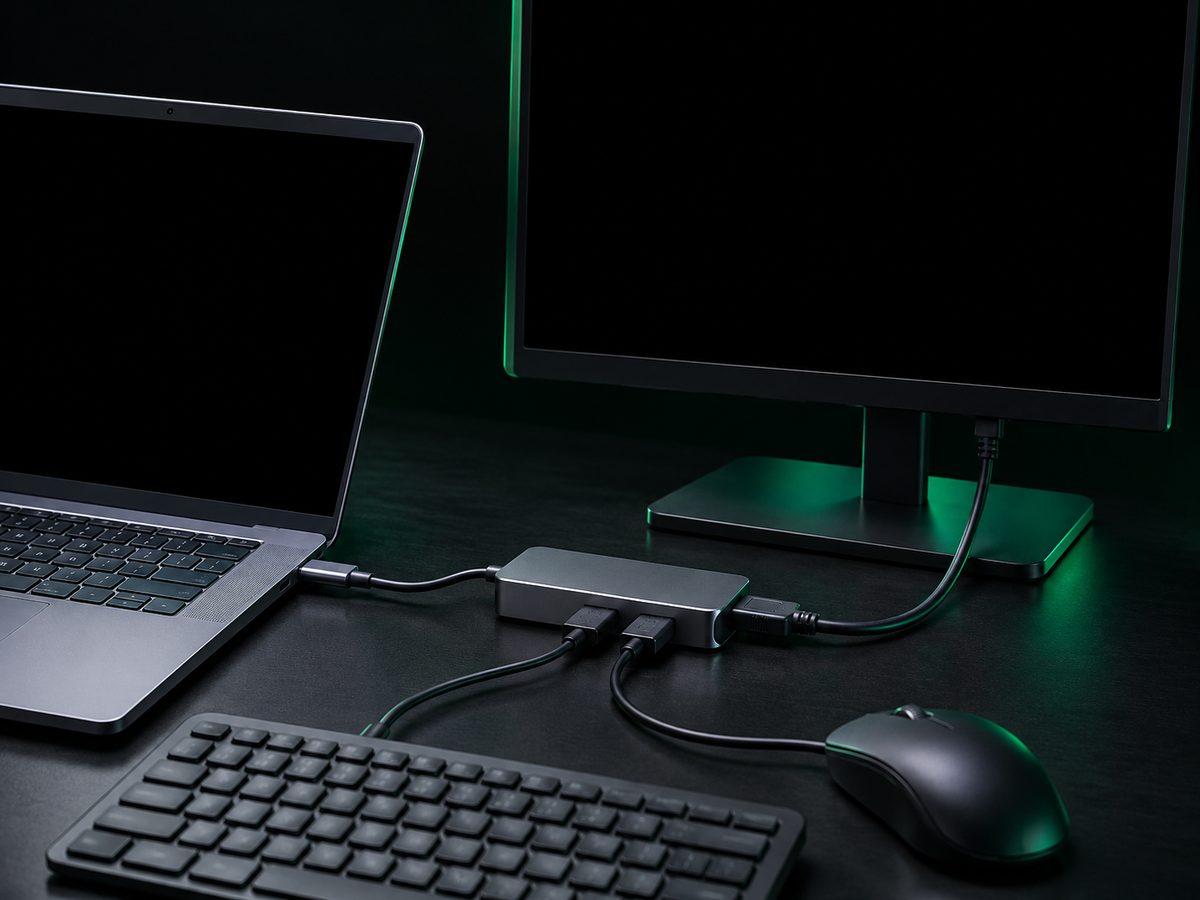
What it is: USB-C names a reversible connector, not a guaranteed data speed, charging level, or display capability. The host port, cable, and accessory must support the function you need, which is why a plug fitting is only the first check.
What you'd see: A dock may run a keyboard and mouse while its monitor stays blank, or a cable may charge a phone without carrying the expected data. Those symptoms call for capability checks across the whole connection.
How you stop it: Compare the documented data, power, and optional display support of the host, cable, and accessory. Test with a known-compatible cable before promising a one-cable desk.
◇ MicroUSB / miniUSBOlder shapes need the right fit
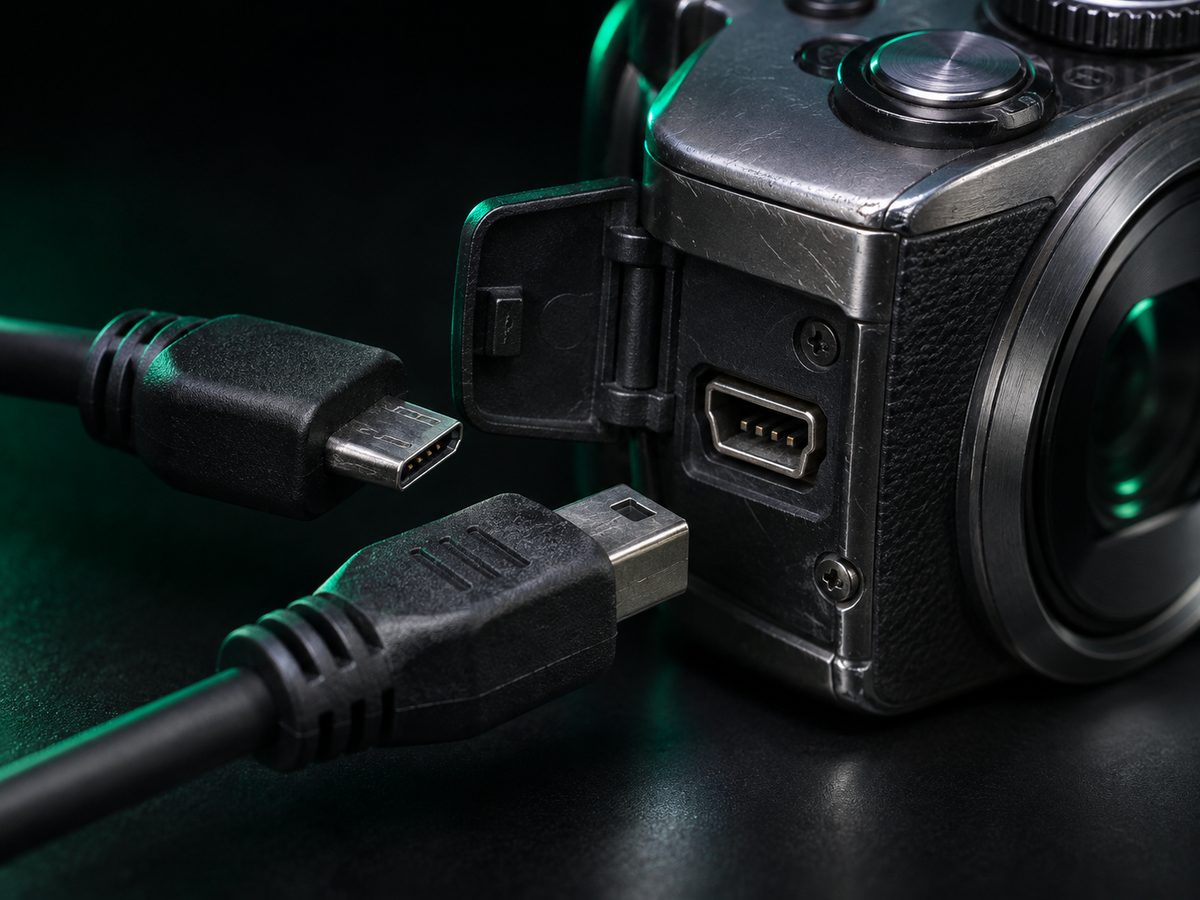
What it is: MicroUSB and miniUSB are older, non-reversible connector families. Their shapes are different, so matching the actual device requirement matters more than choosing a cable that merely looks close.
What you'd see: A user may bring an older accessory whose charging port does not accept the phone cable on hand. Inspecting the port and the device documentation helps you distinguish the required connector without forcing a fit.
How you stop it: Choose the correct connector and a cable that supports the needed charging or data function. Check adapter support for the intended task; a physical adapter alone does not prove the whole connection will work.
◇ LightningCheck the Apple device generation
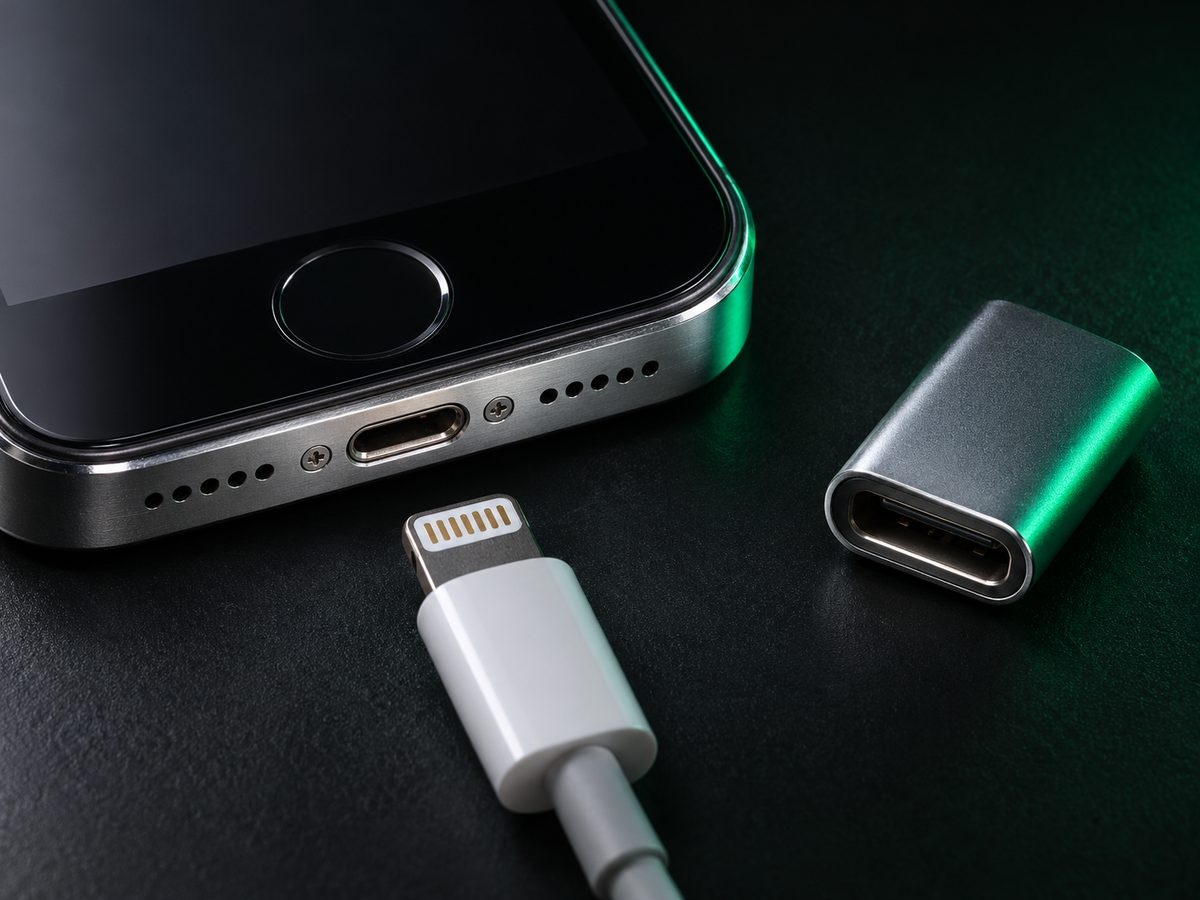
What it is: Lightning is a proprietary connector found on older Apple mobile hardware. Identify the device’s actual port before choosing a cable, because the brand name alone does not establish which connector or adapter it uses.
What you'd see: A user may have a Lightning-equipped phone and an accessory with a different connector, or an adapter that charges but does not support the intended accessory function. The device and adapter specifications help explain that mismatch.
How you stop it: Check compatibility for the specific device, adapter, and task before buying or connecting accessories. Confirm both charging and data or audio behavior where needed instead of assuming every physically connected adapter supports them.
◇ NFCA deliberate close-range tap
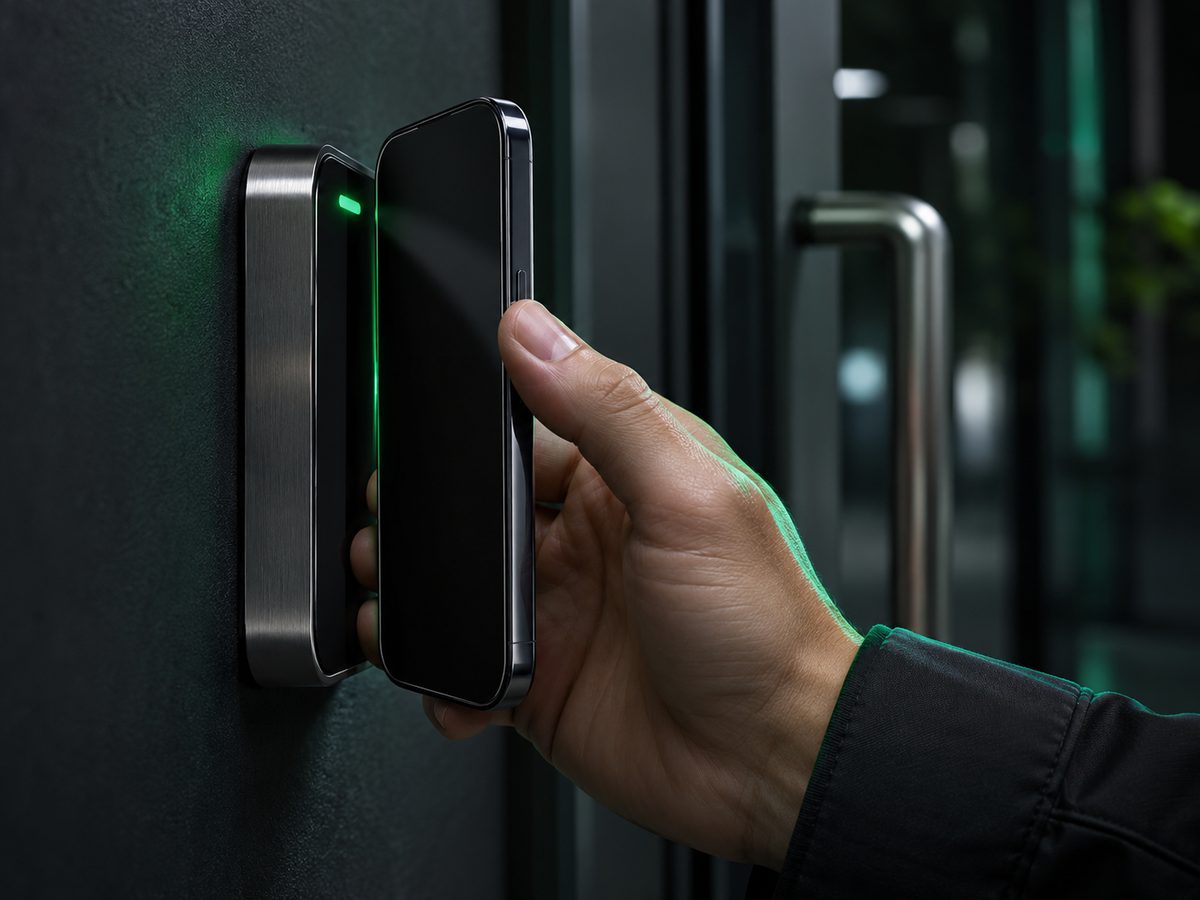
What it is: Near-field communication, or NFC, supports an intentional exchange at very close range, such as presenting a tap credential. It suits brief interactions where bringing the device close is part of the action.
What you'd see: You may see a user hold a phone near a credential reader and receive an acceptance or rejection indication. That is a different use from keeping a headset connected for a continuing audio conversation.
How you stop it: Use the intended reader and an approved credential or payment workflow. Close range alone does not establish trust, so confirm what the tap authorizes rather than treating proximity as proof that an exchange is safe.
◇ BluetoothNearby audio and input accessories
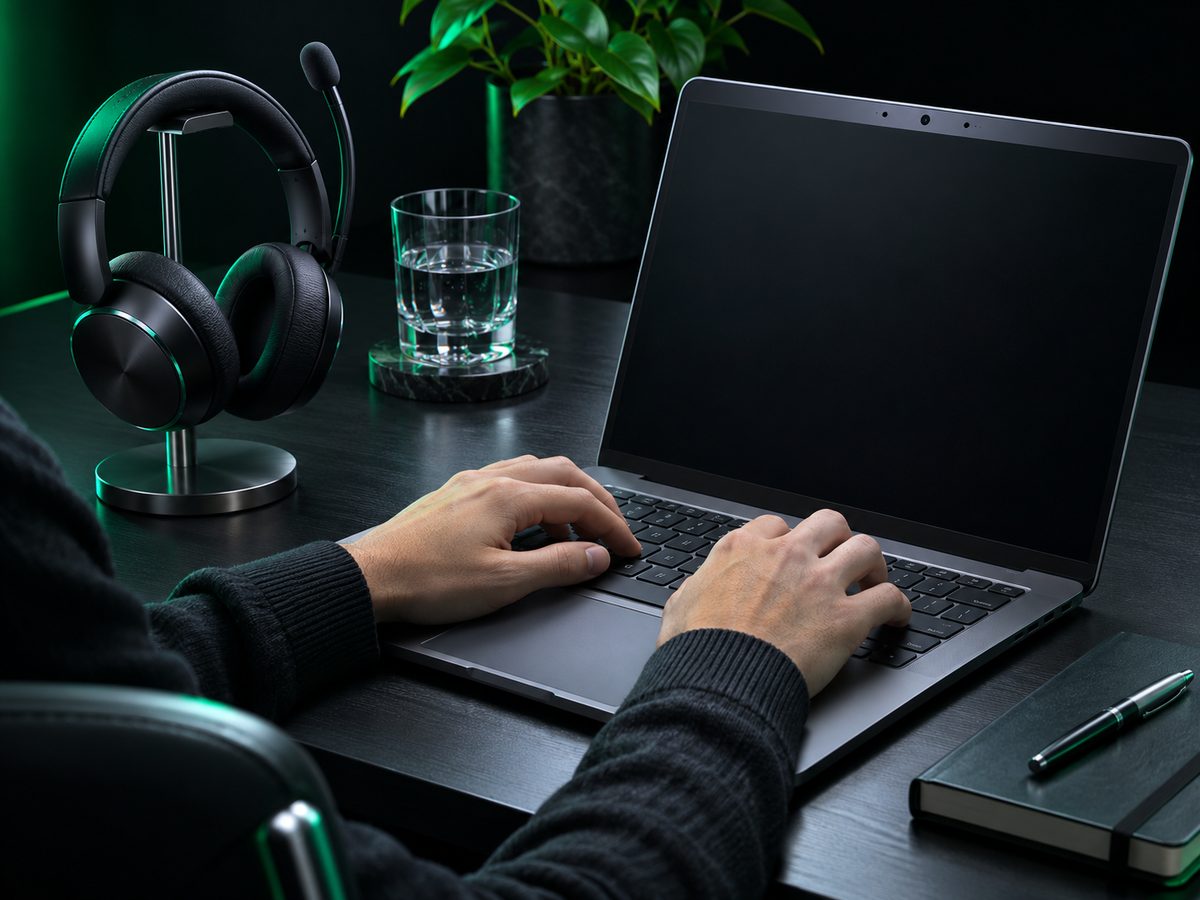
What it is: Bluetooth connects nearby peripherals such as headsets, speakers, and supported input devices. Compatibility includes the functions both devices support, so a connection alone does not prove every accessory feature will work.
What you'd see: A headset may play audio while a calling app still uses the laptop microphone. A pen may pair successfully while the screen lacks the digitizer support needed for writing.
How you stop it: Choose a compatible accessory and verify its actual function in the intended app. For calls, test both listening and microphone input; for a pen, check the supported pen technology as well as any Bluetooth features.
◇ Tethering / hotspotTwo links share one connection
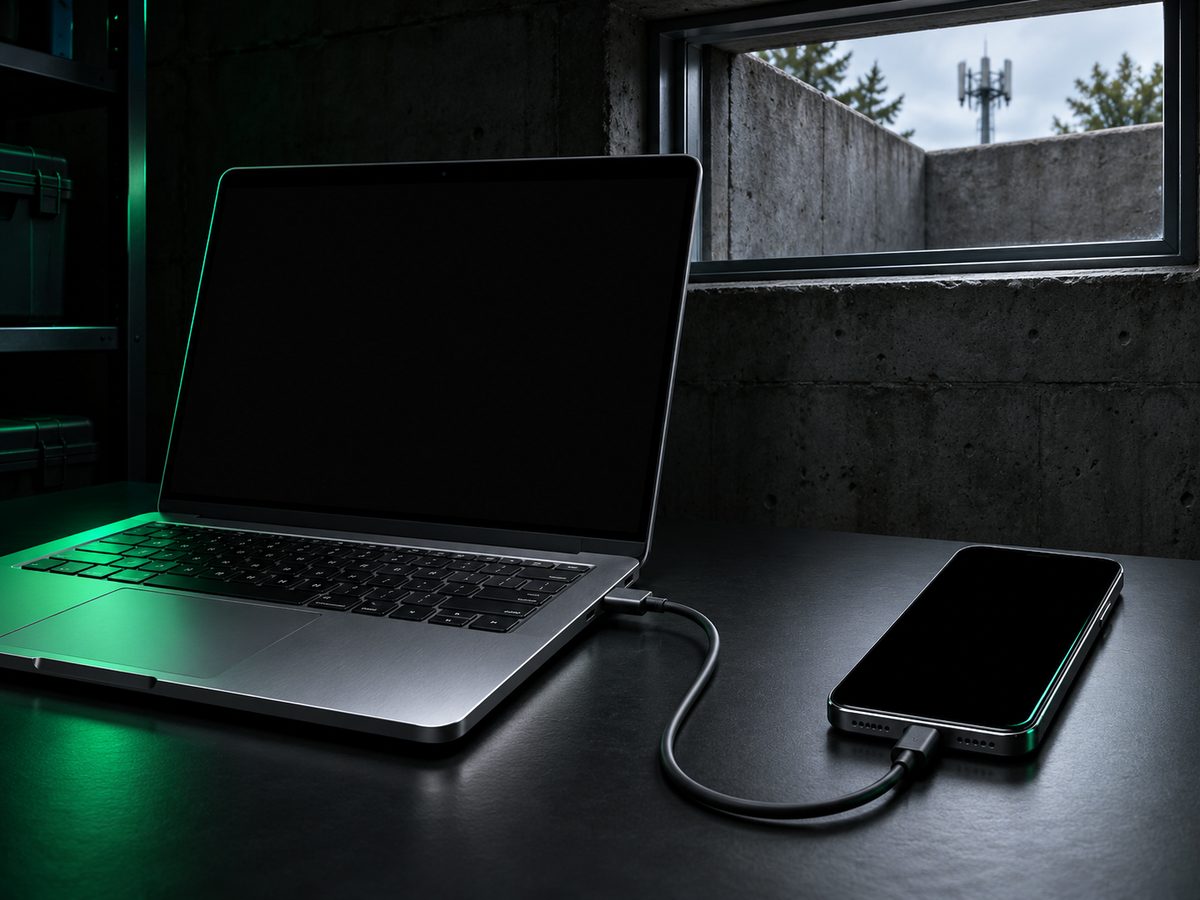
What it is: Tethering shares a mobile device’s internet connection through a supported link such as USB, Bluetooth, or a Wi-Fi hotspot. With a hotspot, the local Wi-Fi link and the phone’s upstream mobile connection are separate parts of the path.
What you'd see: A laptop may show strong hotspot Wi-Fi while web pages load slowly because the phone has poor cellular reception. A good local signal does not establish a good upstream connection.
How you stop it: Check both links, the data allowance, battery use, and whether sharing is permitted. Choose a supported sharing method and verify the actual internet path before treating the hotspot as a working replacement connection.
Exam traps
- USB-C names a connector, not a promise of display output or speed.
- Bluetooth pen pairing does not establish digitizer compatibility.
- A hotspot has a local Wi-Fi link and a separate upstream mobile link.
Quick check
Ten questions. Choose before reading the explanation.
Put the evidence to work
A pen pairs but makes no marks on a tablet. What should you check first?
Nina takes calls on her phone while walking between desks and wants to leave the phone in her pocket. Which connection should her wireless headset use?
Omar holds his phone about an inch (a few centimeters) from the office entry reader, and the door unlocks without a pairing screen. Which connection supports this exchange?
Desk screen stays dark. My laptop charges at the desk and the mouse works, but I can't get my spreadsheet onto the big screen. Dock peripherals respond; the external display reports no signal. The same monitor and display cable work with a second computer. The laptop port specification lists USB data and power delivery only. The dock uses native DisplayPort over its upstream USB-C connection. Which limitation best fits?
Desk screen stays dark. My laptop charges at the desk and the mouse works, but I can't get my spreadsheet onto the big screen. Dock peripherals respond; the external display reports no signal. The same monitor and display cable work with a second computer. The laptop port specification lists USB data and power delivery only. The dock uses native DisplayPort over its upstream USB-C connection. What should you do next?
Misses stay in this browser. Open Week 2 Recap. The recap reviews the four weekday posts.
Key terms
- USB-C
- Reversible connector; functions depend on the complete path.
- NFC
- Near-field communication for very short-range exchanges.
- Tethering
- Sharing a mobile device internet connection.
- Port replicator
- An accessory that exposes or adds peripheral ports.
Field Resources
Watch it
Review the named concepts, then return to the decisions. Opens on YouTube.
Practice it

Brett builds practical certification lessons and interactive practice to help learners turn knowledge into usable skills.
Sources: C1-1.2 — EXAM OBJECTIVES comptia-a-220-1201.pdf.