OS Installations: Choose the Route Before You Boot
Clean install, upgrade, repair or image? That choice decides what happens to the user's data, so make it before you boot from anything. You'll plan the boot method, the disk layout, compatibility checks and a way back, so the install goes where you meant it to.
An installation can finish without a single error and still fail the user: their app won't run, their settings are gone, or the only backup was on the disk you just erased. So this Core 2 Tuesday starts with what the user needs, then works back to the right installation route.
Choose boot and installation methods, partitioning, formatting, compatibility checks, and feature-update planning for a scenario. 220-1202 1.2
Connect deployment decisions to tested change and recovery plans. Supporting context only.
Recognize that network installation depends on working network services. Supporting context only.
Prefer video first? Jump to the free video ↓
Before the first reboot
Before you touch the installer, take stock of what's already on the machine: the current Operating System (OS) and edition, whether it's 32-bit or 64-bit, the storage and firmware mode, whether the drive is encrypted, and which apps, drivers, and licenses the user depends on. Then confirm the new version is supported on this hardware and that the vendor allows an upgrade from what's there now. Just because the installer runs doesn't mean the result is a setup you should leave in production.
Next, protect the user's stuff. Back up their files and settings to a separate drive or location, then restore a few of them to prove the backup actually works. Save any recovery keys through your organization's approved process, know how you'd roll back if things go wrong, and schedule the downtime so the user knows what they'll keep. An upgrade is not a backup.
Last, make sure everything the user relies on will still work, especially older business software and specialized devices like label printers or scanners. If you're upgrading a whole fleet, try one representative machine first. And if a vendor won't support their app on the new OS, pause that migration or work out an approved alternative. Hoping it works after the reboot isn't a compatibility plan.
Then to now
Windows 95 came on 13 floppy disks, and network-based setup is older than many technicians' first USB installer.
- 1981MS-DOS shipped with the IBM Personal Computer (PC), installed from floppy disks.
- 1995The floppy version of Windows 95 needed 13 disks to install; a CD-ROM version was also sold.
- 1999Intel's Preboot Execution Environment (PXE) 2.1 specification documented booting from the network before an operating system loads.
- TodayWindows 11 installs from a USB drive or over the network, and requires Unified Extensible Firmware Interface (UEFI) firmware with Secure Boot capability and Trusted Platform Module (TPM) 2.0.
Knowing how setup reaches the disk helps you separate a boot-media problem from a missing storage driver or an unsupported upgrade.
How will setup start?
Your first decision is how the machine will even start setup. For a single desk visit, a bootable USB flash drive is the easy choice. Just know that copying the installer file onto an ordinary flash drive doesn't make it bootable. Build the drive with a trusted tool for the target firmware and architecture, and when you boot, double-check you picked the right entry, since some machines list the same drive more than once.
If you're setting up a lot of workstations, network boot saves you from walking a USB drive to every desk. It pulls the deployment environment over the network, but it only works with supported firmware, a reachable network, and deployment services that are already set up. Internet-based recovery works in a similar way, pulling the software straight from the vendor, so it needs a working connection and a device that supports it. Many machines also have a local recovery partition or a spare internal partition you can start from.
Solid-state or flash media, external drives, and internal drives can all hold an install or boot environment, as long as the platform supports booting from them. One caution: hot-swappable hardware doesn't mean every OS or firmware can boot from it, and it never means it's safe to pull the drive the system is running on.
Two more terms show up on the exam. Multiboot means installing more than one OS on the same device and choosing one at startup, so you'll need separate space for each and a boot setup that supports it. A virtual machine is different: it runs inside virtualization software on the host, so you never reboot to get to it.
Preserve, replace, repair, or repeat
Next, pick the route, and that really comes down to what you keep. A clean install puts a fresh OS on the destination and wipes whatever was there, so you'll restore the user's files and reinstall their supported apps afterward. Because it's destructive, make sure you've got the exact right disk and partition before you click anything.
An in-place upgrade moves the user to a newer supported OS while keeping their supported apps, accounts, files, and settings. That convenience comes with stricter compatibility requirements than a clean install. A repair installation tries to fix the current OS instead, and what it keeps depends on the platform and the repair method you pick, so read up on that method before you start.
Image deployment is how you repeat a tested setup across lots of machines. Plan for model-specific storage and network drivers, give each machine its own unique identity, sort out licensing, and run updates after it lands. You'll also hear two related terms: remote network installation is about delivery, meaning the install arrives over the network, and zero-touch is about automation, meaning little or no technician work. Both can describe the same image deployment.
Don't lean on a recovery partition as a backup. It may offer recovery tools or a reset to factory settings, but it usually doesn't hold the user's latest files, so confirm what the recovery option will erase before you run it. And keep any third-party drivers you might need handy, especially if setup can't see the storage controller or network adapter.
Partition table first, file system second
Here's a distinction the exam loves. Partitioning splits a disk into regions, and formatting puts a file system into one of those regions. GPT and MBR are partition-table schemes, while New Technology File System (NTFS) and Extended File Allocation Table (exFAT) are file systems. One describes how the disk is divided; the other describes how files are stored.
GPT handles large disks and lots of partitions, and it's the standard layout for Windows installed in UEFI mode. Traditional MBR has limits: about 2 TiB per disk with 512-byte sectors, and only four primary partitions, though an extended partition can hold extra logical drives. Read the scenario for context clues instead of assuming every platform works the same way.
Match the firmware boot mode and disk layout to what the target OS requires. Converting the disk layout or switching boot mode without a plan can leave an existing installation unable to boot. And if you spot a recovery partition you don't recognize, leave it alone; unfamiliar doesn't mean unneeded.
Pick the file system the install destination requires, then let the installer create any system partitions it needs. Remember that a successful format only proves a file system was created. It doesn't prove you picked the right disk or protected what was on it.
The first desktop is the halfway point
Reaching the desktop means you're about halfway done. Now check activation where it applies, drivers, updates, security controls, networking, user access, and most importantly the business apps the user actually needs. Restore their data and preferences and test them, then remove any temporary deployment access through the approved process.
Keep your updates straight, too. Feature updates add or change OS capabilities and can affect compatibility, while quality updates generally patch and maintain the release you already have. Plan feature updates around the product life cycle and supported versions, and check the vendor's current requirements when you deploy instead of memorizing a support date from a lesson.
Finally, document what you did: the method, the build, the drivers, your checks, and the recovery route. If the user can't do the job they could do before, the ticket isn't done.
Installation route selector
Compare installation routes by what they preserve, what you must prepare, and what you need to verify afterward.
◇ Clean installStart fresh, then restore
What it is: A clean install creates a fresh operating system environment at the selected destination. It does not carry the user’s installed applications and settings forward like an in-place upgrade, so plan restoration and application installation before you begin.
What you'd see: Setup may ask you to select a destination disk and partition. After installation, the desktop may be usable while the user’s business applications and files still need to be restored.
How you stop it: Verify the exact destination and a usable backup before destructive changes. Restore data and reinstall supported applications afterward, then test the user’s work; reaching the first desktop does not finish the installation.
◇ In-place upgradeKeep a supported existing environment
What it is: An in-place upgrade moves an existing installation to a supported newer operating system while retaining supported applications, accounts, files, and settings. That preservation is convenient, but the source version, hardware, and software still need a supported upgrade path.
What you'd see: A compatibility check may identify an unsupported application or driver before setup proceeds. You may also find that the intended edition or architecture does not support the route you planned.
How you stop it: Check vendor requirements, application and driver support, and a recovery plan before starting. Back up files and preferences even when setup promises to keep them; an upgrade is not a backup.
◇ Image deploymentRepeat a tested baseline
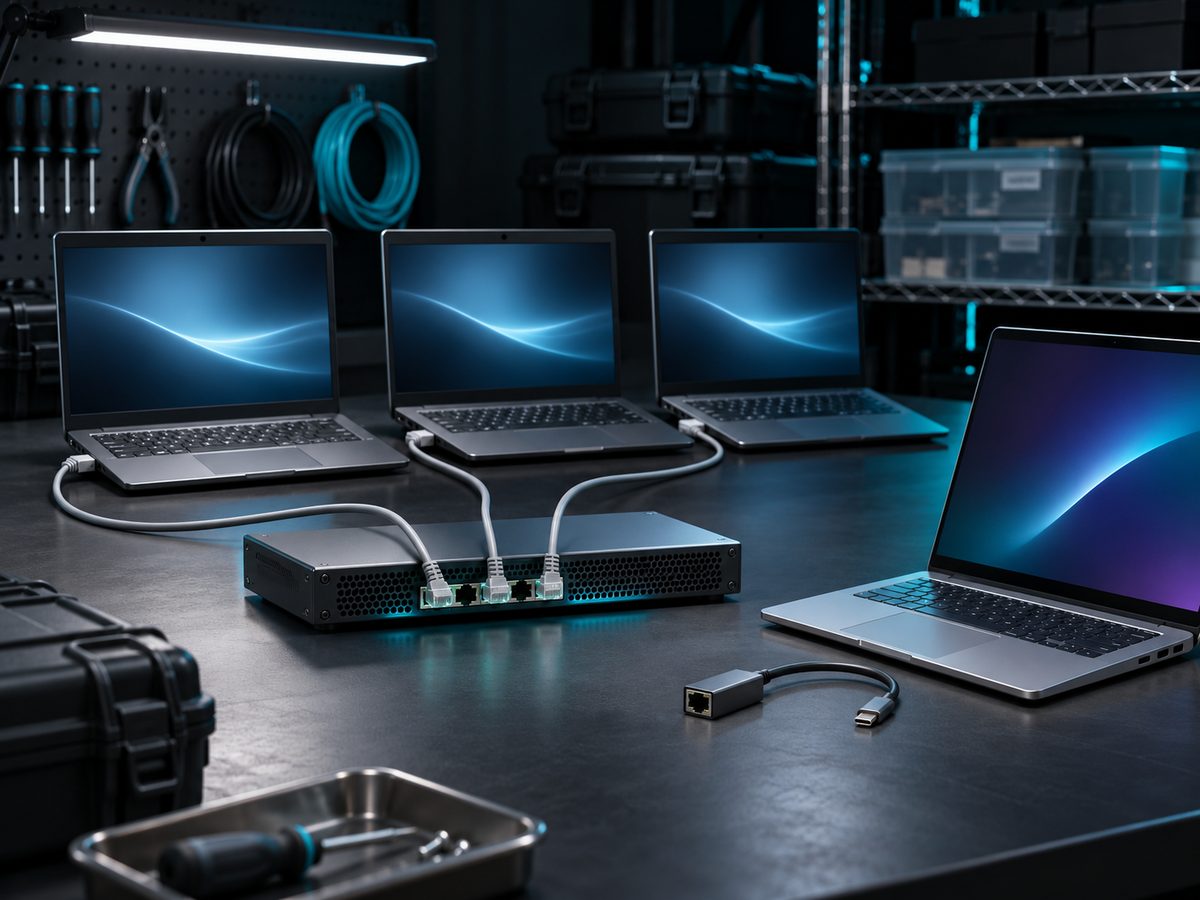
What it is: Image deployment applies a prepared system baseline so you can repeat a tested configuration across machines. The baseline saves repeated setup work, but it still needs the right drivers, licensing, updates, and a unique identity for each destination.
What you'd see: Several newly deployed machines may have the same expected applications, while one hardware model lacks a working network adapter. That difference points you toward model-specific driver support rather than assuming the image fits every device.
How you stop it: Test the image on representative hardware and handle drivers and unique identity through the deployment process. Verify updates, licensing, networking, and the applications users need before handing each machine over.
◇ Zero-touchAutomation describes technician involvement
What it is: Zero-touch describes how much technician interaction deployment requires. It is an automation level, not a file system or partition-table scheme, and it can use an image delivered over a network.
What you'd see: A prepared device may receive its configuration and complete installation without someone answering setup prompts at the desk. If it stops waiting for a driver or an unanswered setup choice, the automation is incomplete.
How you stop it: Validate the prerequisites and the unattended choices before broad deployment. Test a representative device so missing drivers or incorrect destination settings do not get repeated automatically across many machines.
◇ Repair installationRepair with preservation limits
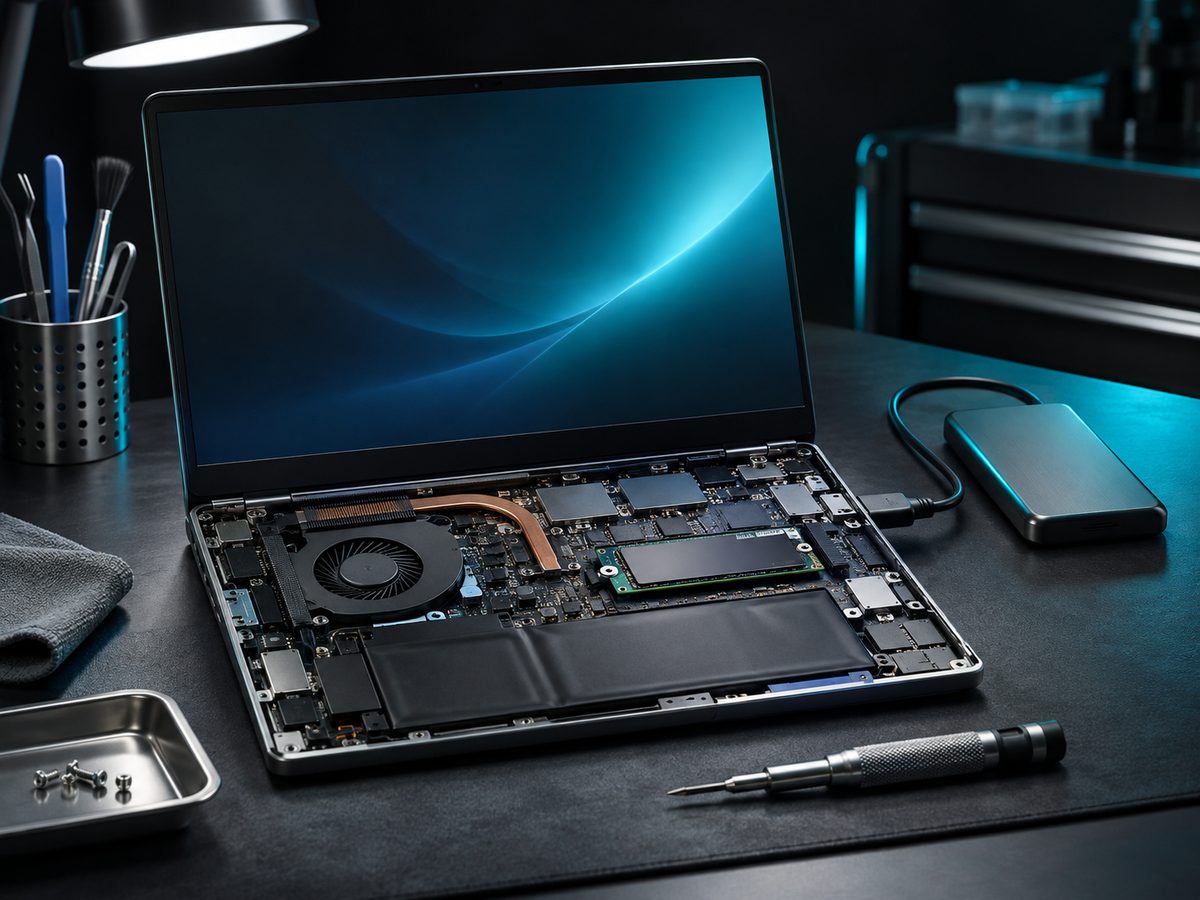
What it is: A repair installation aims to fix the current operating system rather than simply move it to a newer release. What it preserves depends on the platform and the documented repair method, so the word repair is not a guarantee that every file or app stays.
What you'd see: A recovery or setup screen may offer several repair and reset options with different preservation choices. Read the actual option description before assuming it keeps the user’s applications.
How you stop it: Back up the user’s data and check the documented method and its limits before proceeding. Afterward, verify system health and the user’s applications and files rather than treating a successful boot as complete recovery.
◇ Recovery partitionLocal recovery is not backup
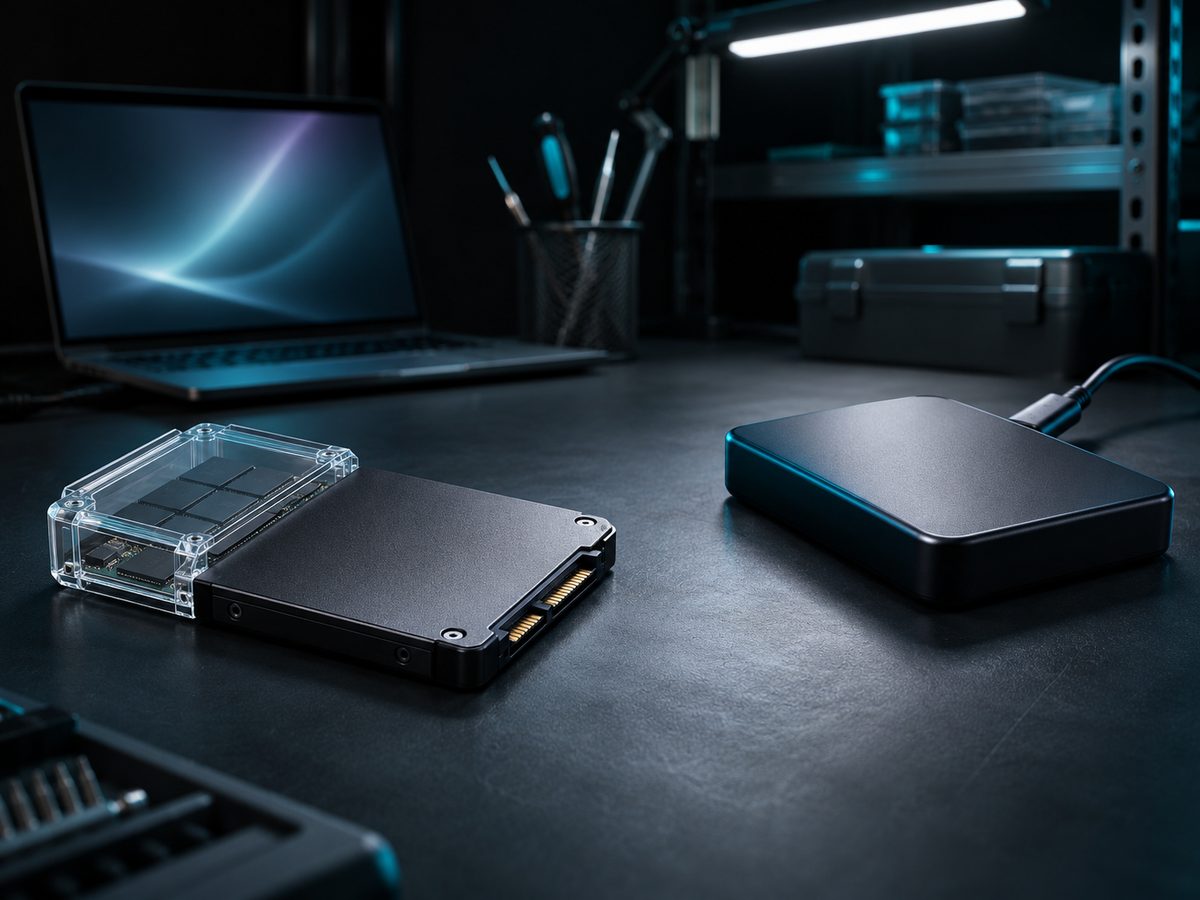
What it is: A recovery partition holds a local recovery environment or a route to factory restoration. It can help you reach repair tools, but it is not a current backup of the user’s files and may live on the same disk that fails.
What you'd see: You may see a recovery partition in the disk layout or a startup option for factory recovery. Neither tells you that yesterday’s documents are protected, and a reset may erase data.
How you stop it: Confirm what the recovery option changes before using it, and protect current files separately. Leave unfamiliar recovery partitions intact until you understand their purpose and have an approved plan for the disk.
Exam traps
- GPT and MBR describe partition tables; formatting creates a file system.
- An upgrade is not a backup, and a recovery partition may share the failing disk.
- Zero-touch describes automation; network installation describes delivery.
Quick check
Ten questions. Choose before reading the explanation.
Put the evidence to work
Which item is a partition-table scheme?
A critical vendor app does not support the proposed OS. What is the best next step?
Lee is preparing thirty identical laptops for a new office, and a pilot machine already has the approved apps and settings. Which installation route should Lee use?
Setup can't find a drive. The new workstation's install just stops. It says it can't find a drive, and I need this machine by Thursday. Firmware setup lists a 1 TB Non-Volatile Memory Express (NVMe) Solid-State Drive (SSD) under storage devices. Windows Setup shows: "We couldn't find any drives. To get a storage driver, click Load driver." The vendor spec sheet says this model ships with its storage controller in Intel VMD mode. Dana's files are on an external backup drive that was test-restored yesterday. What is the most likely cause?
Setup can't find a drive. The new workstation's install just stops. It says it can't find a drive, and I need this machine by Thursday. Firmware setup lists a 1 TB NVMe SSD under storage devices. Windows Setup shows: "We couldn't find any drives. To get a storage driver, click Load driver." The vendor spec sheet says this model ships with its storage controller in Intel VMD mode. Dana's files are on an external backup drive that was test-restored yesterday. What do you do next?
Misses stay in this browser. Open Week 2 Recap. The recap reviews the four weekday posts.
Key terms
- GPT
- GUID Partition Table; a modern disk partition layout.
- Image deployment
- Installing a prepared baseline onto target systems.
- Multiboot
- Selecting one of multiple installed operating systems at startup.
- Feature update
- A release that adds or changes OS capabilities.
Field Resources
Watch it
Review the named concepts, then return to the decisions. Opens on YouTube.
Practice it

Brett builds practical certification lessons and interactive practice to help learners turn knowledge into usable skills.
Sources: C2-1.2 — EXAM OBJECTIVES comptia-a-220-1202.pdf.